
Inbox clipping happens when an email is too big and parts get cut off. This article explains why it happens and how to prevent it.
Key Takeaways
Inbox clipping happens when an email goes over the size limit set by email providers (Gmail’s is 102KB).
Ways to prevent email clipping are to optimize image sizes, clean up email code, use plain text formats. Stick to the recommended email size limit of under 100KB.
Test emails on different devices and use tools to preview email rendering to find and fix clipping issues before sending.
What is Inbox Clipping?
A screenshot showing how a clipped email message looks.
Inbox or email clipping happens when an email goes over the size limit set by an email provider and gets truncated. Gmail clips emails that are over 102 kilobytes (KB). It replaces the extra content with three dots that you can click to view the full message. This is most commonly associated with Gmail but other email clients may clip large emails too.
The effects of email clipping can be big. Important content like calls-to-action (CTAs), images or disclaimers get hidden. Tracking pixels at the bottom of the email may not load. So you won’t be able to track open rates accurately. If the tracking pixel is clipped, it just doesn’t work. Unfortunately, many recipients may not notice or click the “View entire message” link. So, your engagement and conversion rates will suffer.
Understanding email clipping is the first step to ensuring your emails are fully visible to your audience. Clipped email can mean missed opportunities and a bad user experience. But don’t worry; we’ll dive into strategies to avoid this in the recipient’s inbox altogether.
Why Does Inbox Clipping Happen?
Gmail’s 102KB size limit is one of the main reasons for inbox clipping. Several factors contribute to the total size of an email including HTML, CSS, embedded images and unnecessary code. The total number of bytes in an email’s code can cause clipping issues in platforms like Gmail. Complex HTML structures, multiple versions of images for different screen sizes and embedded fonts can quickly bloat an email’s size.
Excess formatting or junk code from pasting content, special characters and long email signatures can also increase the email size. Let’s also not forget email subject lines. Using the same subject line for multiple test emails can cause Gmail to clip the messages due to conversation threading.
Good email size management helps avoid email clipping. It ensures the recipient can see the full message size in their email client.
Is Your Email Message Clipped?
Identifying clipped emails is key to diagnosing and fixing email clipping issues. In Gmail look for a “view entire message” link at the bottom or content replaced by three dots which expands the email when clicked.
But even if the email looks complete in the preview, Gmail may still clip the email after it’s received. This can cause important elements like images or CTAs not to load and negatively impact user experience. So sending test emails helps you verify your email isn’t being clipped.
Noticing these signs enables you to take corrective actions to prevent getting your message clipped.
Impact of Inbox Clipping on Email Performance
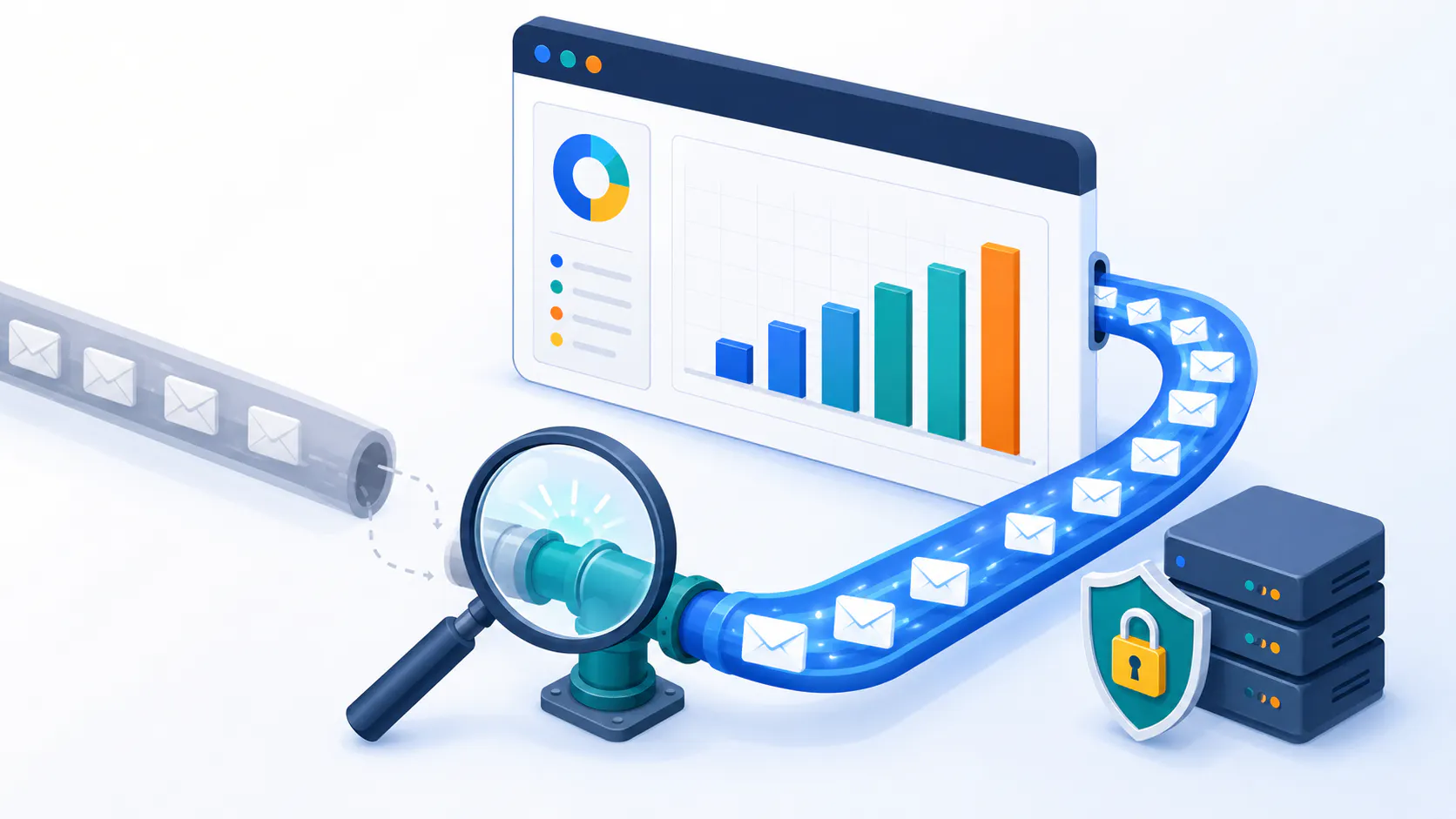
Graph showing the impact of inbox clipping on email performance.
Getting your message clipped can really hurt email performance. When emails are clipped, recipients may miss CTAs or promo’s and therefore have lower engagement and conversions. Emails that have been clipped have lower open and click through rates as many recipients won’t see the “View complete message” link.
Plus if a tracking pixel is cut off email marketers lose data and can’t measure campaign performance accurately. Clipping can also make your emails look unprofessional or incomplete and hurt your brand. In some cases emails that are clipped may even be marked as spam or low priority and be less effective.
Gmail and Inbox Clipping
A screenshot of a Gmail inbox showing a clipped email.
Gmail’s 102KB size cap is a major culprit in email clipping. Once an email goes over that limit, Gmail will clip it no matter what. The clipping process will remove the excess content, often including images, tracking pixels and important info and leave a message like “This email has been trimmed for your convenience”.
This happens most with promotional or newsletter emails that have big images, heavy HTML and long signatures. Unfortunately, Gmail doesn’t notify the sender when their email has been clipped so you have no idea if the recipient is seeing the full message.
Don’t get clipped in Gmail by optimizing your email size, minimising excess code and not sending large attachments or multiple images.
Strategies to Avoid Email Clipping
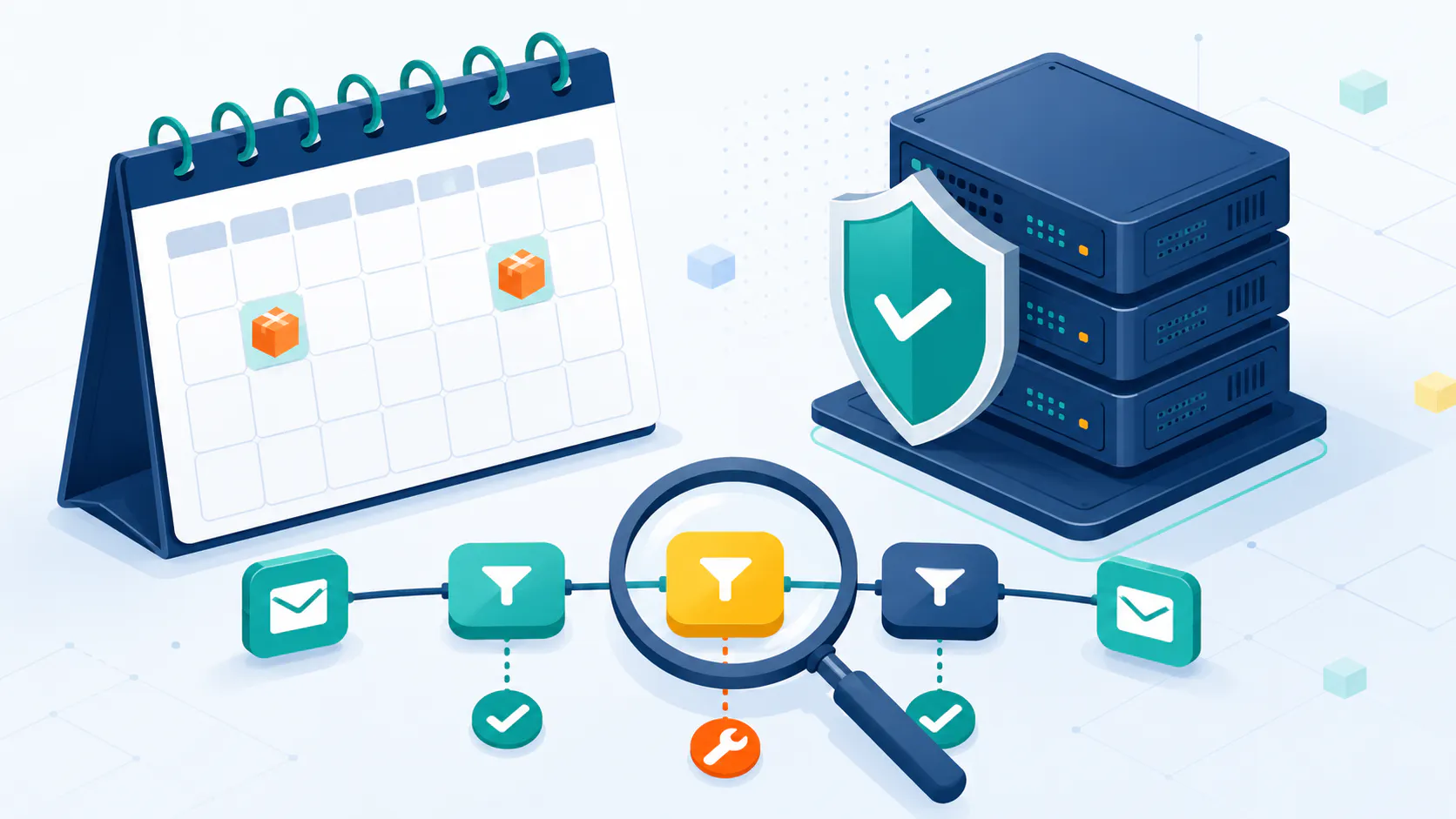
An infographic summarizing strategies to avoid inbox clipping.
Don’t get clipped by keeping your email file size under 102KB, using fewer images, removing code, and testing before you send. Breaking long emails into multiple shorter ones can help with file size too.
Each of the following sections will go into detail on how to prevent email clipping, including image size, code cleanup, plain text and sticking to the recommended email size threshold. By following these tips your emails will be fully visible to your audience and engaging.
Optimize Image Sizes
Optimizing images prevents clipping. Compress images with TinyPNG or ImageOptim to reduce file size without losing quality. Use the right dimensions in your HTML and 72dpi for web images.
Limiting the number of images in your email and choosing the right image format (JPEG for photos, PNG for transparency, GIF for simple animations) will keep your email image size in check.
Using responsive images that scale with screen size means your emails will look great without big file sizes.
Clean Up Your Email Code
Clean up email code to reduce size and performance across clients. Remove unnecessary code and comments from HTML and CSS and use an HTML minifier to reduce code and whitespace.
Test with email rendering features of email marketing platforms like Octeth or Sendloop to find and fix inefficient code and performance issues across email clients. Limiting external resources and keeping code semantic and clean is also key to optimising your email size.
Use Plain Text Where Possible
Plain text emails avoid formatting issues and reduce email size. Plain text emails are readable on all devices and less likely to be flagged as spam, so better deliverability.
Providing a plain text version with HTML emails ensures compatibility with all email clients and looks professional for transactional or confirmation emails. It simplifies the user experience and increases engagement by focusing on the message.
Dynamic Content
Dynamic content like personalised greetings, product recommendations or countdown timers can increase engagement but also pose challenges around email size and clipping. As these are generated in real-time they often increase the code of your email and can push your email over the size limits of email clients like Gmail. To avoid email clipping when using dynamic content you need to optimise your code, prioritise the most important information and test your emails across different platforms. By doing this you can balance creativity with technical constraints and have engaging emails that don’t get clipped.
Recommended Email Size Cap
Maintain email size under 100 KB to prevent clipping in Gmail and other providers. Keep in mind that the size estimates provided are just an estimate and the final email size may differ from the initial estimate. Aim for 50–75 KB for most campaigns to ensure room for content, images, and branding without risking clipping.
Optimize images and code to stay within recommended limits while maintaining quality. Testing email size with tools before sending ensures your email stays within the size caps and performs well across different email clients.
Monitoring analytics can help you adjust and improve your email strategies to avoid clipping.
Testing for Inbox Clipping
Test before you send to avoid clipping. Send a test email to check for clipping and use services like Octeth, Sendloop or Mailtrap to preview email rendering across multiple platforms and find clipping. If you’re sending multiple test emails, make sure the subject lines of these are unique to prevent clipping.
Test on different devices (mobile devices, tablet, desktop) to make sure clipping doesn’t happen on any device. Testing with and without images will help you find clipping issues and including plain text version will make sure even if HTML version is clipped the message is still readable.
Best Practices & Technical Considerations for Email Design in Different Email Clients
Following best practices for email design will help prevent clipping. Keep emails simple and focused, use a mobile device focused approach and design in a single column will make it more readable and smaller. Limit the use of big images, optimize images and use responsive design are must, if you’re using email templates.
Inline CSS for styling will make it more compatible across email clients and testing on popular platforms like Gmail, Outlook and Yahoo will make sure it renders well. Providing a plain text version of your email will increase deliverability and make sure all recipients can read the content.
Prioritize the important thing above the fold and use bullet points and short paragraphs will make it more readable. Implement proper email authentication (SPF, DKIM, DMARC) and minimize tracking scripts will make it more deliverable and reduce the chance of being marked as spam.
Summary
In summary, preventing email clipping involves keeping your email message size under 102KB by optimizing file sizes, cleaning up the code of the email, using plain text, and adhering to recommended size caps. Testing your emails before sending ensures they remain within these limits and perform well across different email clients.
By implementing these strategies, you can ensure that your emails are fully visible to your audience, enhancing engagement and conversions. Avoiding email clipping is crucial for maintaining a professional appearance and delivering your message effectively.
Frequently Asked Questions
What is inbox clipping? Inbox clipping happens when an email surpasses the size limit of your email provider, resulting in a truncated message, which can hinder your ability to view the entire content. It’s essential to keep emails concise to avoid this issue. Is email an example of clipping? No, email itself is not an example of clipping; rather, email clipping refers to the situation where an email is too large for the email service provider to display in full. How can I identify a clipped email? You can tell by looking for a “view entire message” link or three dots in Gmail, which indicates that there is more content available. Clicking on these will reveal the full email. What are the main reasons email clipping happens? Inbox clipping mainly occurs due to large file sizes from HTML, CSS, images, and excessive code, with Gmail clipping emails that exceed 102KB. To avoid this issue, keep your email content concise and well-optimized. How can inbox clipping impact my email campaigns? Email clipping negatively impacts your email campaigns by leading to lower engagement and reducing the visibility of key content, such as CTAs, which can ultimately harm your brand’s reputation. It’s crucial to optimize email content to avoid these issues. Why does Gmail clipping occur with my messages? Gmail clipping occurs when your email surpasses the 102KB size limit imposed by Gmail. This can be due to large images, excessive HTML or CSS code, and unnecessary elements within the email. To avoid Gmail clipping, it’s essential to optimize your email’s content and size. How can I prevent inbox clipping? To prevent inbox clipping, keep your email size under 102KB by optimizing image sizes, cleaning up your HTML code, using plain text when possible, and avoiding large attachments or too many embedded fonts.